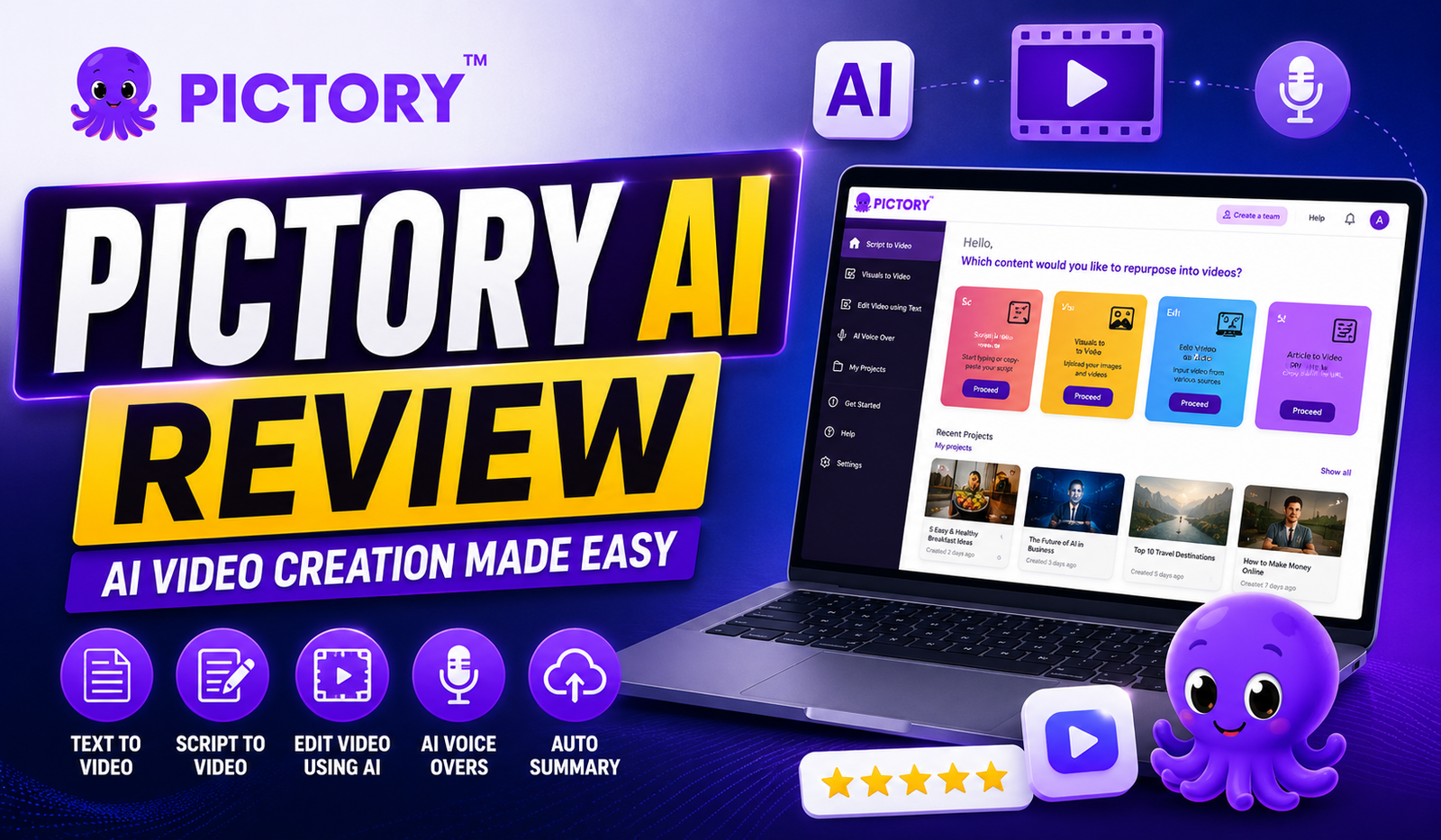
I still remember the first time I sat down to edit a video and realized I had spent almost three hours on a clip that was barely two minutes long. Between cutting clips, adding captions, finding background music, and exporting in the right format, I felt like video editing was eating up time I needed for actual content creation. That’s when I started searching for tools that could simplify this process, and that’s how I came across Pictory AI.
If you’re someone who creates content regularly, whether it’s for YouTube, Instagram Reels, or even repurposing blog posts into videos, you’ve probably heard about Pictory AI by now. It’s been gaining a lot of attention as an AI text to video generator free option, and I wanted to test it out myself before recommending it to anyone.
In this article, I’m sharing my personal, hands-on experience with Pictory AI. I’ll walk you through how I used the platform, what I loved, what frustrated me, and whether I think it’s worth your time and money. This isn’t a generic “best AI tools” listicle. This is based on actual hours I spent inside the Pictory ai app, testing different features and seeing what kind of results I could get.
By the end of this review, you’ll have a clear picture of whether Pictory AI fits into your content creation workflow the way it fit into mine.
What Is Pictory AI? My First Impressions
When I first landed on the Pictory AI website, my initial reaction was that it looked clean and not overly complicated, which honestly mattered a lot to me. I’ve tried other AI tools before that looked impressive on the homepage but turned into a confusing mess once I logged in.
Pictory AI is essentially a platform that lets you convert text, scripts, blog posts, or even long-form videos into shorter, engaging video content using AI. It uses automation to handle things like scene selection, stock footage matching, voiceovers, and captions, so you don’t have to do everything manually.
My first impression after exploring the dashboard for about twenty minutes was that this tool was built with content creators in mind, not video editing professionals. Everything felt geared towards speed and simplicity rather than offering hundreds of complicated settings.
The core features I noticed right away included:
- Script to video conversion
- Blog post to video conversion
- Auto-generated captions
- A built-in library of stock visuals
- AI-generated voiceovers in multiple languages and tones
Setting up my account took less than five minutes. I signed up using my email, verified it, and was immediately taken to the dashboard where I could start a new project. There was no software to download, which I personally appreciated since I work across multiple devices and didn’t want to deal with installations.
My first reaction was a mix of curiosity and skepticism. I’ve used AI tools before that promised a lot but delivered mediocre results, so I went in with realistic expectations rather than excitement.
Getting Started with the Pictory AI App
Since Pictory AI runs entirely through the browser, getting started felt straightforward for me. I didn’t have to install anything on my laptop, which was a relief because I often work from different devices depending on where I am.
After logging in, I was welcomed with a dashboard that showed different project options. I could choose to:
- Create a video from a script
- Convert an article or blog post into a video
- Turn a long video into short clips
- Start from a blank template
I decided to start with the “Script to Video” option because that’s the feature I was most curious about. The interface didn’t overwhelm me with too many buttons or settings right from the start, which made the learning curve feel manageable.
It took me roughly two sessions, about an hour each, before I felt comfortable navigating the platform without constantly clicking around to figure things out. The templates available were categorized based on the type of content, such as social media videos, marketing videos, and educational content, which helped me pick something relevant to my niche quickly.
One thing I noticed early on was that Pictory AI seemed to assume I had at least a basic understanding of video structure, like scenes, transitions, and pacing. If you’ve never edited a video before, there might be a slightly steeper learning curve, but for someone like me who has some editing background, it felt intuitive.
Pictory AI as an AI Text to Video Generator Free Tool — Does It Really Work?
This was the section I was most excited to test because I specifically wanted to know if Pictory AI’s free offering as an ai text to video generator free tool actually lives up to the claim, or if it’s just a watered-down demo meant to push you toward a paid plan.
I started by pasting in a script I had written for a short explainer video about productivity tips. The process involved:
- Pasting my script into the text box
- Selecting a visual style and tone
- Letting the AI match scenes with relevant stock footage and images
- Choosing a voiceover option
- Reviewing and editing the auto-generated draft
What surprised me was how quickly the AI generated a rough draft. Within a couple of minutes, I had a video with scenes that mostly matched the context of my script. It wasn’t perfect, some scenes felt slightly generic, but overall, the matching was better than I expected from a free tool.
The AI voiceover quality on the free plan was decent. It wasn’t going to replace a professional voice actor, but for quick content or social media posts, it sounded natural enough that I didn’t feel embarrassed sharing it.
However, I did notice some limitations while using the free version:
- A watermark appeared on the exported video
- There was a cap on video length and the number of projects I could create
- Access to premium stock footage and certain voice options was restricted
For someone testing the waters or creating content occasionally, I think the free plan gives you a fair idea of what Pictory AI can do. But if you’re serious about using it regularly, you’ll likely hit those limits pretty quickly, like I did within my first week of testing.
Table: Pictory AI Free vs Paid Plan Comparison (Based on My Usage)
| Feature | Free Plan (My Experience) | Paid Plan (My Experience) |
| Watermark on videos | Yes, visible on all exports | No watermark |
| Video length limit | Shorter projects only | Longer videos allowed |
| Number of projects | Limited monthly projects | Higher or unlimited based on tier |
| Stock footage access | Limited library | Full access to premium library |
| AI voice options | Basic voices available | Wider range including premium voices |
| Export quality | Standard quality | Higher quality export options |
| Customization | Basic branding options | Advanced branding and customization |
| Support | Limited support | Priority support on higher tiers |
Based on my own usage, I’d say the free plan is great for testing and occasional use, but if you’re creating content consistently for a business, brand, or personal channel, upgrading to a paid plan removes a lot of the friction, especially the watermark issue, which was honestly the biggest dealbreaker for me when sharing videos publicly.
Key Features I Used and Loved
Out of everything Pictory AI offers, a few features stood out to me during my testing period and became part of my regular workflow.
Script to video conversion was the feature I used most. I’d write or already have a script ready, paste it in, and let the AI handle scene selection. This saved me a significant amount of time compared to manually searching for stock footage myself.
Blog to video conversion was something I tried after seeing how well the script feature worked. I took one of my older blog posts, pasted the URL, and watched as Pictory AI extracted the key points and turned them into a video outline. I had to tweak some sections, but the foundation it gave me was solid and saved me from starting from scratch.
Auto captions and subtitle styling turned out to be one of my favorite features. Since most social media platforms favor videos with captions for accessibility and engagement, having this automated was a huge time-saver. I could customize the font, color, and positioning of the captions without needing a separate tool.
Stock footage and image library integration worked smoothly for general topics. For niche or very specific topics, I sometimes had to manually search and replace clips, but for broad content like lifestyle, business, or educational topics, the matching was impressive.
AI voice options gave me a few voices that sounded natural enough for my use case. I personally preferred the slightly more conversational tones over the formal-sounding ones, and I appreciated having the ability to preview voices before committing to one for the entire video.
Branding and customization options allowed me to add my logo and adjust color schemes, which made the videos feel more aligned with my personal brand rather than looking like generic AI-generated content.
My Workflow: How I Use Pictory AI for Content Creation
Over time, I developed a workflow that worked well for me, and I think sharing it might help you understand how Pictory AI fits into a realistic content creation routine.
My typical process looks like this:
- I write or finalize my script or blog content first, separately from Pictory AI
- I paste the script into Pictory AI and let it generate an initial draft
- I go through each scene and replace any visuals that feel off or too generic
- I adjust the voiceover settings, sometimes testing two or three different voices
- I customize captions to match my brand’s style
- I add my logo and adjust colors for consistency
- I preview the entire video before exporting
This entire process, from start to finish, usually takes me around 30 to 45 minutes for a video that’s two to three minutes long. Compared to traditional editing, where the same video might have taken me two to three hours, this is a massive time difference for me.
I’ve used this workflow for repurposing blog content into short videos for social media, creating quick explainer videos for YouTube shorts, and even putting together simple promotional clips. The consistency in output quality, once I got the hang of the platform, made it a reliable part of my content pipeline rather than a one-time experiment.
Pros and Cons Based on My Personal Experience
I want to be honest here because I think too many reviews focus only on the positives without mentioning the friction points that real users experience.
What worked really well for me:
The speed of video creation was the standout factor. Going from a script to a shareable video draft in minutes instead of hours changed how I approached content planning. I could create more content in less time, which meant I could focus more energy on writing better scripts rather than worrying about editing.
The auto captions feature consistently impressed me with its accuracy. I rarely had to make major corrections, which isn’t something I can say for every captioning tool I’ve tried.
What frustrated me or needed improvement:
Sometimes the AI’s scene matching felt generic, especially for niche topics. I’d write about a specific concept, and the visual would be a broad stock clip that technically related but didn’t feel specific enough. I had to manually swap these out, which added extra time to my workflow.
The free plan’s watermark was a real limitation for me. While I understand why it’s there from a business perspective, it meant I couldn’t realistically use free exports for anything I wanted to share professionally.
I also noticed that during peak usage times, the platform occasionally felt slower, especially when generating longer videos or when I had multiple browser tabs open while working.
Honestly, none of these issues were dealbreakers for me, but they’re worth knowing about before you dive in expecting a flawless experience.
Pictory AI vs Other AI Video Tools I’ve Tried
I’ve experimented with a couple of other AI video tools before settling into using Pictory AI more regularly, and I think a quick comparison based on my experience might help.
One tool I tried focused more on full automation with very limited customization options. While it was fast, the output felt less personalized, and I found myself unable to make the kind of edits I wanted without switching to a different tool entirely.
Another tool I tested had more advanced editing capabilities but came with a much steeper learning curve and a higher starting price, which felt unnecessary for the type of content I was creating.
| Aspect | Pictory AI (My Experience) | Alternative Tool A | Alternative Tool B |
| Ease of use | Beginner-friendly | Very beginner-friendly | Steeper learning curve |
| Customization | Good balance | Limited | Extensive |
| Pricing for casual users | Reasonable free tier | Free with heavy limits | Higher starting cost |
| Output quality | Good for most use cases | Decent | Very high |
| Best for | Script/blog to video creators | Quick automated clips | Professional editors |
For my personal needs, which involve consistent content creation without needing professional-grade editing, Pictory AI offered the best balance between speed, quality, and ease of use. That’s why it became my go-to choice over the alternatives I tried.
Tips and Tricks I Discovered While Using Pictory AI
Through trial and error, I picked up a few things that genuinely improved my results, and I think they’re worth sharing.
Writing scripts with clear, descriptive sentences helped the AI match more relevant visuals. When my sentences were vague or too abstract, the scene matching was noticeably weaker. Being specific about what I was describing made a real difference in the quality of automatically selected clips.
Breaking longer scripts into shorter paragraphs or sections also helped because it gave the AI clearer cues for where one scene should end and another should begin, resulting in better pacing overall.
I made the mistake early on of not previewing voiceovers before finalizing a video. The first couple of times, I ended up with a voice tone that didn’t match the energy of my content, and I had to redo the audio. Now, I always preview at least two voice options before committing.
Another thing I learned was to manually review every scene transition rather than relying entirely on the AI’s automatic pacing, especially for videos meant for fast-paced platforms like Instagram Reels or YouTube Shorts, where viewer attention spans are extremely short.
Who Should Use Pictory AI? My Recommendation
Based on everything I’ve experienced, I think Pictory AI is particularly useful for content creators, bloggers, and small business owners who want to repurpose existing written content into video format without hiring a video editor or learning complex editing software.
If you’re someone who already creates blog posts, articles, or scripts regularly and wants to expand into video content without a massive time investment, this tool fits naturally into that kind of workflow, just like it did for mine.
On the other hand, if you’re a professional video editor working on highly customized, cinematic projects, you might find the customization options somewhat limiting compared to dedicated editing software. In that case, Pictory AI might work better as a starting point or for quick drafts rather than your primary editing tool.
Final Verdict: Is Pictory AI Worth It?
After spending real time testing Pictory AI across different types of projects, my overall impression is positive. It’s not a perfect tool, no AI tool is, but it solved a genuine problem for me: turning written content into video content quickly without requiring advanced editing skills.
The free plan gave me a realistic sense of its capabilities, and the paid plans removed the friction points that mattered most to me, particularly the watermark and content limits. For the price, I felt like I got reasonable value, especially considering the time I saved.
If I had to rate my overall experience, I’d say it’s a solid tool for anyone looking to streamline their video creation process, particularly if your content already starts in written form.
FAQs
Is Pictory AI really free to use?
Yes, Pictory AI offers a free plan that lets you create videos, but exports come with a watermark and there are limits on video length and the number of projects you can create monthly.
Do I need to download the Pictory ai app to use it?
No, based on my experience, Pictory AI works entirely through your web browser, so there’s no separate app to download or install.
Can Pictory AI convert blog posts into videos?
Yes, I tested this feature myself, and it works by extracting key points from a blog post or article URL and generating a video draft based on that content.
Is the AI voiceover good enough for professional use?
In my experience, the AI voiceovers sounded natural enough for social media and casual content, though I’d recommend previewing multiple voice options before finalizing your video.
How long does it take to create a video using Pictory AI?
For me, a two to three minute video typically took around 30 to 45 minutes from start to finish, including reviewing and customizing the AI-generated draft.
Is Pictory AI good for beginners with no editing experience?
Based on my experience, it’s beginner-friendly, but having some basic understanding of video structure, like scenes and pacing, helps you get better results faster.
Conclusion
My experience with Pictory AI has been largely positive, and it’s become a regular part of how I approach video content creation. From testing it as a free ai text to video generator to exploring the paid features within the Pictory ai app, I found a tool that genuinely saves time without sacrificing too much in terms of quality or customization.
If you’re someone who creates written content regularly and wants to explore video without diving into complex editing software, I’d say it’s worth trying out for yourself and seeing how it fits into your own workflow, just like it did for mine.
Also Read About :- The Business Strategy Software